Welcome back to
Google Docs! Another option in Google Docs is Google forms. Forms seem to have endless uses because they offer different types of questions. Google forms allows the creator to make surveys, questionnaires, applications, polls, invitations, collection of personal information, and even tests and quizzes!
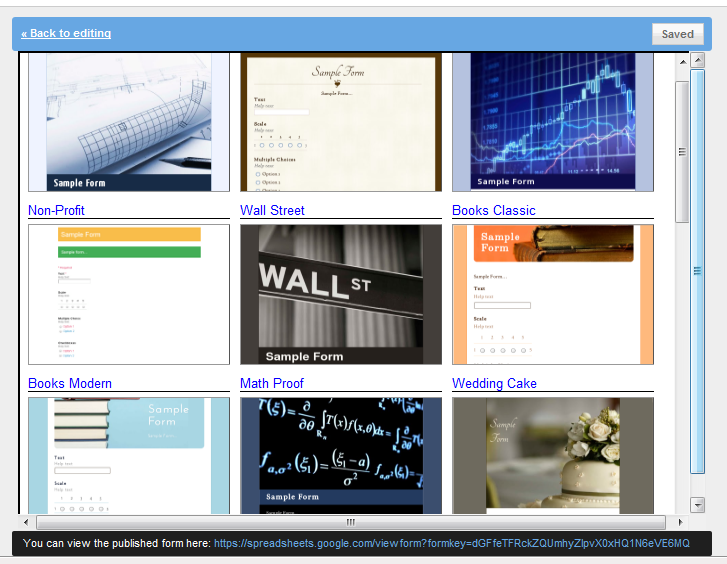
After entering Google Docs, open a new document for forms. Once open, you come to an edit page where you can being inserting questions for your form. Don't forget to add a title first! You can also change your theme so that it fits with the topic of the form, but that is not necessary.

Then, you are ready to create questions. The different question types are text, paragraph text, multiple choice, checkboxes, choose from a list, scale or grid. The advantage to these is that you can create a form with multiple types of questions to ensure that you get the feedback or response that you desire.

The different question types offer various setups for each question. For example, multiple choice allows a creator to provide multiple answers to a question, including selecting the correct answer.
You will continue to add questions until you feel the form is exactly what you desire. The form can be edited continually, and edited by anyone with which the form has been shared. Google forms also has features for your questions where you can make certain questions required so that a user cannot move on until they have answered the question. Other questions/all questions can be left optional. Another option is creating a form from a
Google spreadsheet.
Once finished, you can send your form to anyone! The advantage is that all of your results can be seen in spreadsheet form once users begin to complete the questions on the form. You can also view a summary report of traffic and answers on the form. Although you cannot provide a cut off day and time for the form so that it stops taking answers, you can put a time/day on the form for when it will be closed; the only thing the user must remember is that he/she must make it so that the form is no longer public.
Another potential downside to Google forms is that you must be online in order to create a Google form and to fill it out. If you are without access to the Internet, you must wait!
I created a
Google form for our World Language Department so that our team leader would not have to have a huge meeting to discuss schedules for the following school year. The meetings always end in a disaster and tears over who is going to teach which course. Instead, everyone can fill out their choices online, and only our team leader will see the results. She can create the schedules from there without anyone knowing who chose which course and why. Once completed, everyone's results will be automatically compiled into an organized spreadsheet for our team leader! This was the perfect solution to a miserable problem!
Check back soon for other educational and telecollaborative uses for Google forms! For now, don't be afraid to get help with Google forms from sites like
this or
this (creating quizzes). There is even a Google Docs blog where you can see
posts just on forms!